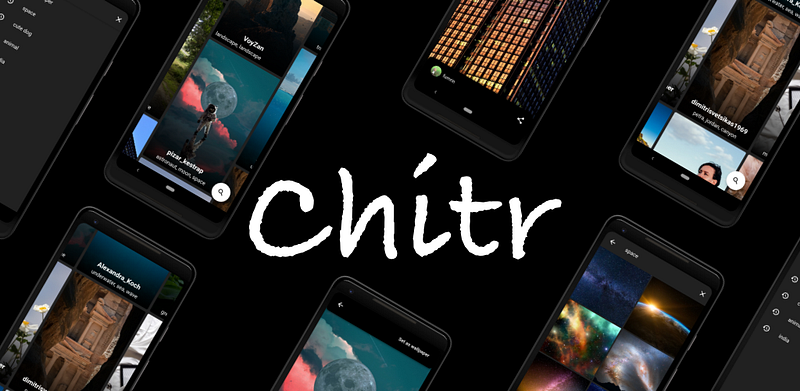
In this series of blog, we will be building a wallpaper app from zero to one in Flutter. Our app will consist of a home screen (with some cool animation) and a detailed image screen. So, Let’s get started
But before that let’s try out the app first.
In this part, we are going to build the home screen and fetch images from PixaBay API. But before going forward let’s see what we are going to build.
So, the animation looks cool but how to build it 🤔? The three main ingredients to build is animation are http, preload_page_view and cached_network_image. The http plugin is used to make an HTTP request and fetch images from PixaBay API. As the name suggests the preload_page_view is just like Flutter PageView with addition to load the page in advance. And at last everyone’s favourite Cached network image to load and cache network images. So our ingredients are ready let’s see the recipe.
Fetching Images:
First import the http plugin to pubspec.yaml.
http: ^0.12.0+2Create a class ApiProviderwhich will have the getImages() function.
class ApiProvider {
  Future
 getImages(int count) async {
    final response = await http.get(
        'https://pixabay.com/api/?key=
 &editors_choice=true&per_page=$count&orientation=vertical');
    if (response.statusCode == 200) {
      return ImageModel.fromJson(jsonDecode(response.body));
    } else {
      throw Exception('Failed to get images');
    }
  }
}
Now in home_page.dart we will call the getImages() function from initState to fetch images. We are not using FutureBuilder as it creates problem by restarting the asynchronous task every time the widget rebuild.
List
 hits;
_loadImages() async {
var imageModel = await ApiProvider().getImages(25);
hits = imageModel.hits;
setState(() {});
}@override
void initState() {
_loadImages();
super.initState();
}Building animation:
Before building the animation let’s decode it from the above video. The UI consists of multiple images in a grid with 5 rows and 5 columns. We can achieve this layout by using GridView but it’s not suitable for us as it does not allow us to manipulate with element animation. The other way to do it is using a vertical PageView inside a horizontal PageView. But one problem with the PageView is we cannot load all the 5 columns at once so we use PreloadPageView. we will specify our viewportFraction to 0.7 and preloadPagesCount to 5. ViewportFraction is the fraction of the viewport that each page should occupy. This will allow us to see the fraction of other pages which will give us a grid-like layout.
One thing to note from the below code is*_animatePage(int page, int index)*function. It’s where all the magic happens. What’s its doing is animating all other PreloadPageView instead of the current one. Which gives us this awesome springy animation. Let’s cut some slack and see the code.
You must be wondering where CustomCard comes from. Well, it’s another stateful widget where we are using CachedNetworkImageto show image and other image details. Here is the code for it.
Well, that’s it. Our awesome animation is cooked.
What’s Next?
In the next article, we will see how we can set any of these images as wallpaper.
Creating a wallpaper app in Flutter: Part 2 Cooking a wallpaper app from zero to one. medium.com
If you liked this article make sure to 👏 it below, and connect with me onTwitter,GithubandLinkedIn.