If you’ve been building with Stac, you already know the magic: define your UI in JSON (or Dart!), push it from the server, and watch your Flutter app update without touching the App Store. But there’s one question that comes up a lot:
“How do I actually navigate between screens?”
Navigation in Stac follows the same mental model as Flutter’s Navigator. Push screens, pop back, or replace the current one.
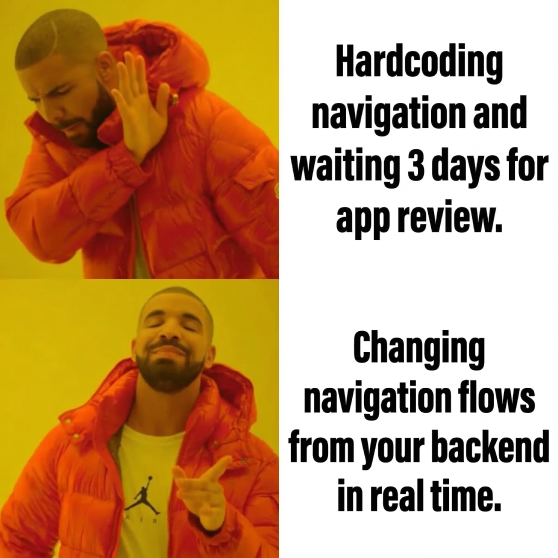
The difference is simple but powerful: your backend can control navigation. No redeployment. No waiting for app review.
Where Can You Navigate To?
Stac gives you five ways to define your destination. Pick the one that fits:
1. Stac Screen Screens served from Stac Cloud.
2. Flutter Route Your app’s existing named Flutter routes (for example: /settings).
3. Inline JSON A screen defined directly inside the action JSON.
4. Asset Bundled JSON screens stored locally in your app for offline-first flows.
5. Network A screen fetched from an API at navigation time.
Navigation Styles
Before we look at examples, here’s the cheat sheet for how you navigate:
1.**push** Push a new screen on top of the navigation stack.
2.**pop** Go back to the previous screen. You can optionally return data.
3.**pushReplacement** Replace the current screen with a new one.
4.**pushAndRemoveAll** Push a new screen and clear the entire navigation stack. Commonly used for flows like Login → Home.
5.**popAll** Pop all screens and return to the root.
6.**pushNamed** Navigate to a Flutter named route (for example: /settings).
If you’ve worked with Flutter’s Navigator, this should feel right at home.
## Navigation Stack

Login Screen
     │
     │ push
     ▼
Detail Screen
     │
     │ pop
     ▼
Login Screen
Show Me the Code
Enough theory. Let’s see how this works in both Dart and JSON.
Popping Back
The simplest one, go back:
Dart:
// Pop current route
onPressed: StacNavigator.pop()

// Pop with a result for the previous screen
onPressed: StacNavigator.pop(result: {'saved': true})

// Pop all the way back to root
onPressed: StacNavigator.popAll()
JSON:
{
  "actionType": "navigate",
  "navigationStyle": "pop"
}
Want to send data back? Add a result:
{
  "actionType": "navigate",
  "navigationStyle": "pop",
  "result": { "saved": true }
}
Pushing a Stac Screen
Got a screen called detail_screen in your /stac folder? Navigate to it like this:
Dart:
StacNavigator.pushStac('detail_screen', arguments: {'id': '123'})JSON:
{
  "actionType": "navigate",
  "routeName": "detail_screen",
  "navigationStyle": "push",
  "arguments": { "id": "123" }
}
Clean and simple. Your backend can swap detail_screen with anything it wants.That’s the SDUI superpower right there. 💪
Pushing a Flutter Named Route
Already have a /settings route defined in your Flutter app? No problem - Stac plays nicely with your existing routes:
Dart:
StacNavigator.pushFlutter('/settings', arguments: {'tab': 'profile'})JSON:
{
  "actionType": "navigate",
  "routeName": "/settings",
  "navigationStyle": "pushNamed",
  "arguments": { "tab": "profile" }
}
📝 Note: Use pushNamed, pushReplacementNamed, or pushNamedAndRemoveAll for Flutter routes. The non-Named variants (push, pushReplacement, etc.) are for Stac screens.
Pushing an Inline JSON Screen
Sometimes you don’t want a separate screen file. You just want to define the screen right there in the action. Hold my JSON:
Dart:
StacNavigator.pushJson({
  "type": "scaffold",
  "appBar": {
    "type": "appBar",
    "title": { "type": "text", "data": "Detail" }
  },
  "body": { "type": "text", "data": "Hello from inline JSON!" }
})
JSON:
{
  "actionType": "navigate",
  "navigationStyle": "push",
  "widgetJson": {
    "type": "scaffold",
    "appBar": {
      "type": "appBar",
      "title": { "type": "text", "data": "Detail" }
    },
    "body": { "type": "text", "data": "Hello from inline JSON!" }
  }
}
Is it a bit wild? Yes. Is it useful for quick prototypes or one-off screens? Absolutely.
Pushing from an Asset
Offline-first? Bundle your screen JSON as an asset:
Dart:
StacNavigator.pushAsset('assets/screens/detail.json')JSON:
{
  "actionType": "navigate",
  "navigationStyle": "push",
  "assetPath": "assets/screens/detail.json"
}
Pushing from the Network 🌐
This is where it gets really interesting. Fetch a screen from an API at navigation time:
Dart:
StacNavigator.pushNetwork(
  StacNetworkRequest(url: 'https://api.example.com/screen', method: Method.get),
)
JSON:
{
  "actionType": "navigate",
  "navigationStyle": "push",
  "request": {
    "url": "https://api.example.com/screen",
    "method": "get"
  }
}
Your server returns a Stac widget tree, and it gets pushed as a new route. Think about it - your entire screen is served at runtime. A/B testing, personalized flows, feature flags… all without a new build. 🚀

The Login → Home Classic
Every app has it. The user logs in, and you want to push them to the home screen while nuking the entire navigation stack so they can’t “back button” their way to the login page.
Dart:
// Replace current screen
StacNavigator.pushReplacementStac('home_screen', result: {'loggedIn': true})
// Or go nuclear - push and remove everything
StacNavigator.pushAndRemoveAllStac('home_screen')JSON:
{
  "actionType": "navigate",
  "routeName": "home_screen",
  "navigationStyle": "pushAndRemoveAll"
}
No more accidental back-to-login. Your users will thank you. Your QA team will definitely thank you.
Quick Reference: Dart Helpers
StacNavigator gives you type-safe helpers so you’re not hand-building JSON action objects in Dart:
- Pop:
StacNavigator.pop(),StacNavigator.popAll() - Stac screens:
pushStac(),pushReplacementStac(),pushAndRemoveAllStac() - Flutter routes:
pushFlutter(),pushReplacementFlutter(),pushAndRemoveAllFlutter() - Inline JSON:
pushJson()(+ replacement and removeAll variants) - Assets:
pushAsset()(+ variants) - Network:
pushNetwork()(+ variants)
Every push variant follows the same pattern. Learn one, you know them all.
Wrapping Up
Navigation in Stac isn’t a new paradigm; it’s Flutter’s Navigator made server-driven. You get the same push/pop/replace model you’re used to, with the added flexibility of driving it entirely from JSON or your backend.
Whether you’re pushing a local Stac screen, a Flutter named route, an inline widget tree, a bundled asset, or a screen fetched from an API, it all works the same way.
That’s the Stac way. ✌️
Ready to Try Stac?
Start building with Stac and explore how server-driven UI can simplify your Flutter apps.
🔗 Docs: docs.stac.dev 💻 GitHub: github.com/StacDev/stac 💬 Discord: discord.gg/vTGsVRK86V
Have questions or want to share what you’re building? Come hang out in the Discord. We’d love to see what you build with Stac.