
Android has provided us with many powerful componentized model for building your UI. All of these models are based on fundamental layout classes: View and ViewGroup. We can create our own view by simply subclass the widget or layout and override its methods. We you want to know more about custom view I would you to read this article by Roman Danylyk.
Here we will be creating a view which will let us draw on canvas.
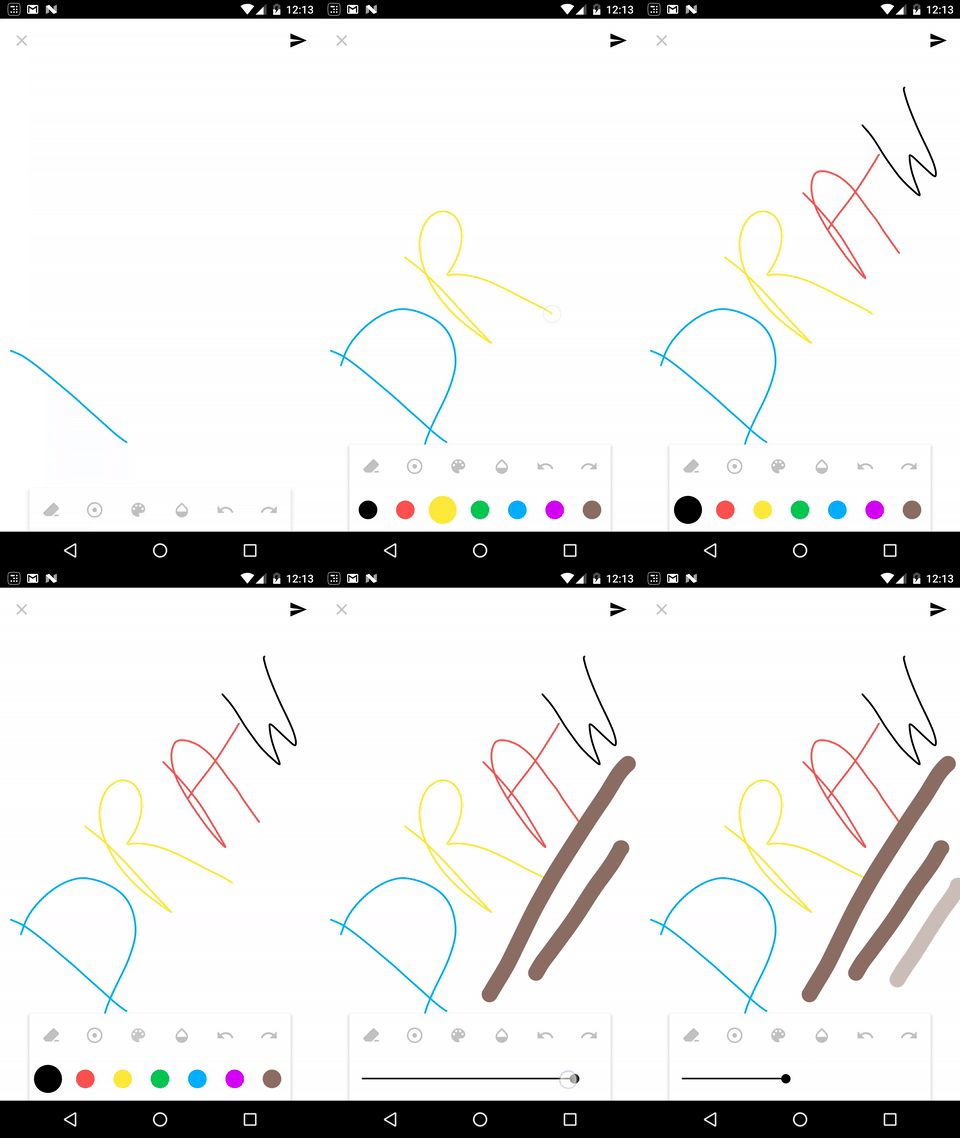
We will be creating something like this but bit simpler. Before jumping to the code try out sample app.
I have also created a library for android draw. Check out the github repo.
DrawView
Let’s jump directly towards code. First we create a class DrawViewwhich is the subclass of view and initialize paint and path object.
class DrawView(context: Context, attrs: AttributeSet) : View(context, attrs) {private var mPaint = Paint()
private var mPath = Path()
private var mCurX = 0f
private var mCurY = 0f
private var mStartX = 0f
private var mStartY = 0f
init {
mPaint.apply {
color = Color.BLACK
style = Paint.Style.STROKE
strokeJoin = Paint.Join.ROUND
strokeCap = Paint.Cap.ROUND
strokeWidth = 8f
isAntiAlias = true
}
}
}Here comes the important part. We will now override onTouchEvent and create three functions for ACTION_UP, ACTION_DOWN and ACTION_MOVE.
override fun onTouchEvent(event: MotionEvent): Boolean {
    val x = event.x
    val y = event.y

when (event.action) {
        MotionEvent.ACTION_DOWN -> {
            mStartX = x
            mStartY = y
            actionDown(x, y)
        }
        MotionEvent.ACTION_MOVE -> actionMove(x, y)
        MotionEvent.ACTION_UP -> actionUp()
    }

invalidate()
    return true
}
when ACTION_DOWNevent is called we will move path to x & y and update the value of mCurX and mCurY.
private fun actionDown(x: Float, y: Float) {
    mPath.moveTo(x, y)
    mCurX = x
    mCurY = y
}
when ACTION_MOVEis called we will make a quadratic curve. UsingquadTo helps to make smooth line on curve.
private fun actionMove(x: Float, y: Float) {
    mPath.quadTo(mCurX, mCurY, (x + mCurX) / 2, (y + mCurY) / 2)
    mCurX = x
    mCurY = y
}
When ACTION_UPis called we will make a line to mCurX and mCurY.
private fun actionUp() {
    mPath.lineTo(mCurX, mCurY)

// draw a dot on click
    if (mStartX == mCurX && mStartY == mCurY) {
        mPath.lineTo(mCurX, mCurY + 2)
        mPath.lineTo(mCurX + 1, mCurY + 2)
        mPath.lineTo(mCurX + 1, mCurY)
    }
}
At the end draw path on canvas in onDraw() function.
override fun onDraw(canvas: Canvas) {
    super.onDraw(canvas)

canvas.drawPath(mPath, mPaint)
}
HURRAY! We have completed our drawing view. Our whole code will look something like this.
Bonus
To clear your canvas reset path and call invalidate().
fun clearCanvas() {
    mPath.reset()
    invalidate()
}
Now you can add your view to xml
To check github repo for more features like change strokeWidth, change strokeColor, change Alpha, erase, redo, undo. https://github.com/divyanshub024/AndroidDraw
Also try out the sample app.
If you liked this article make sure to 👏 it below, and follow me on twitter!